The headphones work like a dream – until you turn them off. After that, your device and headphones just stare at each other like two strangers on Tinder who are too scared to send the first message. Sound familiar? This is one of the most common Bluetooth issues, and thankfully it's almost always fixable without a trip to the repair shop.
Why does pairing disappear?
Bluetooth pairing is basically a trust relationship between two devices. Both save each other to memory, and next time they should find each other automatically. Sometimes, though, that trust breaks down.
Most common reasons:
- The headphones are trying to connect to a different device. If you've paired your headphones with your phone, work computer, and tablet, they might latch onto the wrong device when they power on. Or sit around waiting for a device that isn't even nearby.
- The device's Bluetooth memory is messed up. Computers especially – and Windows in particular – have a special talent for screwing up Bluetooth pairing in ways that would make even a seasoned IT support person weep.
- The headphones' own pairing memory is stuck. Less common, but it happens. A firmware update or a simple reset sorts it out.
How to fix it
Do these in order. Don't skip straight to step three, no matter how tempting it is.
1. Remove the old pairing from your device
- Go to your phone's or computer's Bluetooth settings
- Find the Valco headphones in the list
- Select "Forget device" / "Remove pairing"
- This is the step everyone skips. Don't skip it.
2. Reset the headphones' Bluetooth memory
- Turn off the headphones
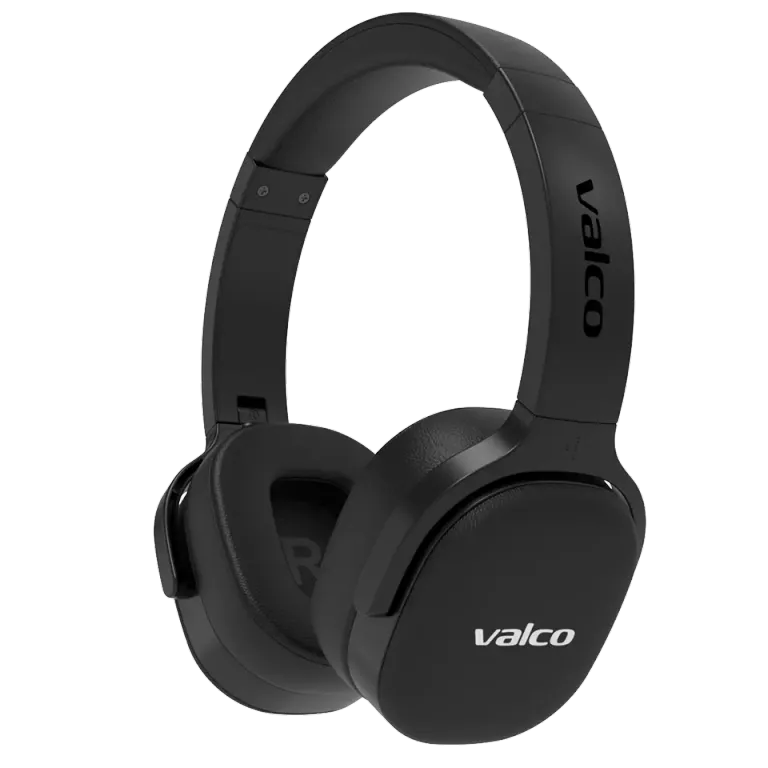
- Press and hold the centre button (multifunction button) while turning the headphones on
- The headphones will enter pairing mode – you'll usually hear a tone or the LED will flash differently
- This forces the headphones to forget old pairings and search for a new device
3. Pair again
- Open your device's Bluetooth settings
- Find the Valco headphones in the list and select them
- Accept the pairing
4. Test power off and restart
- Turn off the headphones
- Turn them back on
- If they connect automatically, problem solved. If not, read on.
Bonus tip for Windows users: Windows is exceptionally gifted at messing things up with Bluetooth. Try removing the headphones from Windows Bluetooth settings, restarting the computer, and only then pairing again. Sometimes just "Forget device" isn't enough – you may need to go into Windows Device Manager and completely remove the Bluetooth device driver.
If that doesn't help
If pairing drops every single time after powering off even after following these steps, it could be a firmware issue or, more rarely, a hardware fault. Get in touch with us at info@valco.fi and let us know:
- Which headphone model you have
- What device you're trying to connect to (phone/computer, operating system)
- Order number, if you have it
Our service team in Kajaani will figure out whether it's a software or hardware issue. And you won't even need to create a new Tinder profile.
Bluetooth as an invention is a bit like a sausage on the grill – simple concept, but somehow it still goes wrong sometimes. Resetting the pairing fixes nine out of ten cases though. Give that a go first.