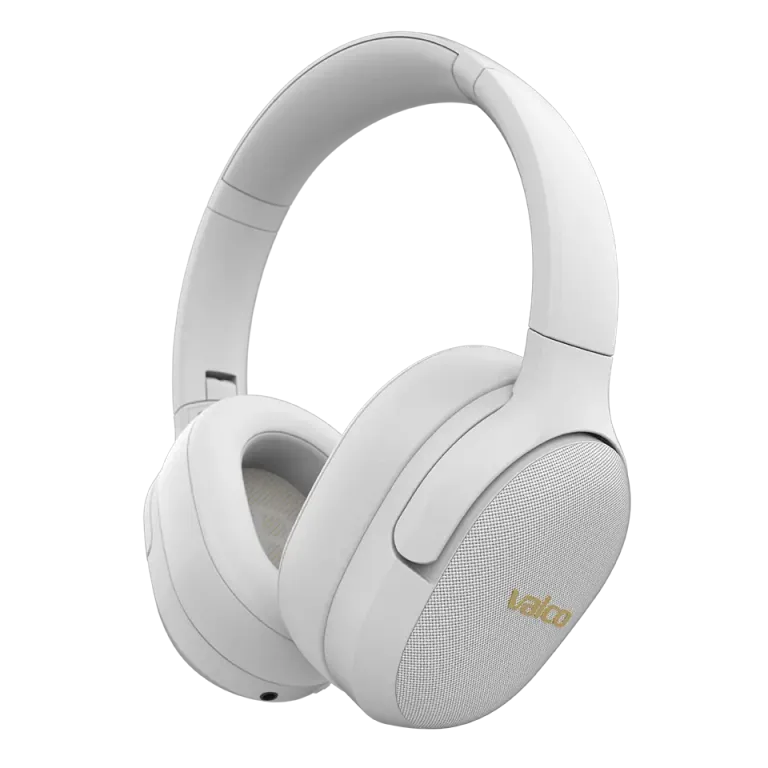
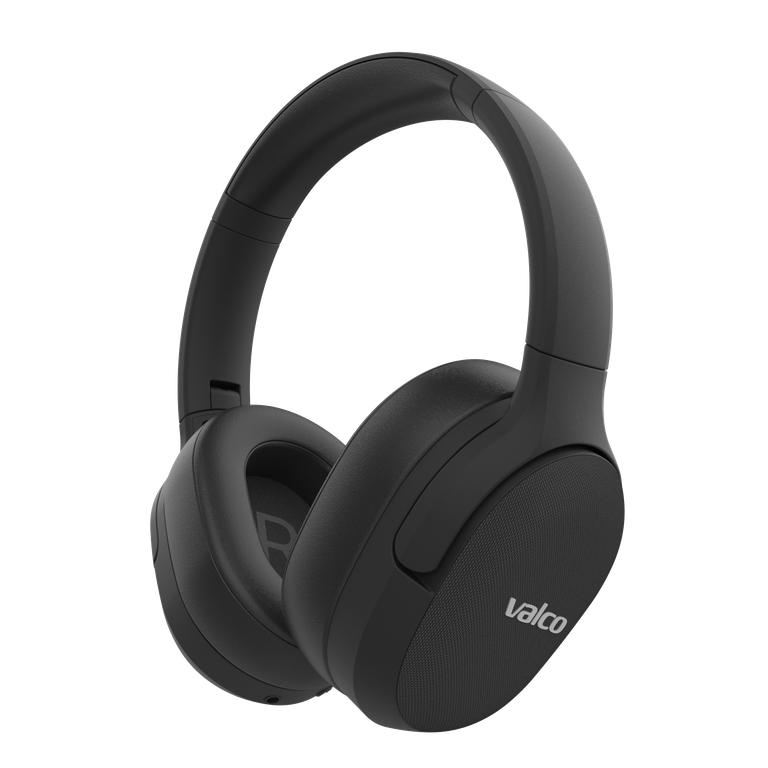
Your headphones are acting up. Bluetooth won't connect, the audio sounds like the band is playing inside a bucket, or the ANC has decided to take the day off. We've all been there. A factory reset is the electronics version of turning everything off and on again – just more thorough. It wipes device pairings and settings and gives your headphones a clean slate.
Before you reset, keep one thing in mind: a factory reset removes all saved Bluetooth pairings. So you'll need to reconnect your phone, laptop, and other devices. Not the end of the world, but good to know beforehand.
VMK25 – reset with an AUX cable
The VMK25 doesn't have a dedicated button combo for factory reset. Instead, the reset is done with an AUX cable, which is honestly a pretty clever solution – or maybe the engineer just couldn't be bothered to code a separate function. Either way, it works.
- Turn off the headphones
- Plug a 3.5mm AUX cable into the headphone jack (right side)
- Unplug the cable
- Turn the headphones on
This resets the Bluetooth chip. The headphones will enter pairing mode and you can reconnect them to your phone or computer.
VMK25.2 – reset with a button combo
If you've got the newer VMK25.2, the process is a bit different.
- Charge the headphones fully first. This actually matters – a battery dying mid-reset can cause even more grey hairs.
- Turn the headphones on
- Press Vol+ and Vol- simultaneously and hold for about 3 seconds
- You'll hear a "du du" sound. That means the factory reset is done.
- The headphones will enter pairing mode
After that, go to the Bluetooth settings on your phone or computer, remove the old VMK25.2 device pairing, and reconnect from scratch.
Having trouble with Windows?
If the problem is specifically with a Windows PC, just resetting the headphones doesn't always cut it. Windows loves holding on to old Bluetooth pairings like your ex's photos.
- Go to Windows Settings → Bluetooth & devices
- Remove VMK25/VMK25.2 from the paired devices list entirely
- Reset the headphones using the instructions above
- Reconnect
If Windows is still throwing a tantrum, try updating the Bluetooth driver in Device Manager. The relationship between Windows and Bluetooth is a bit like an arranged marriage – it works, but requires constant maintenance.
If that doesn't help
If the reset didn't fix the issue, it might be something more than a software glitch. Get in touch with us at info@valco.fi. Include in your message:
- Order number
- Description of the problem (what's happening and when)
- Which devices the headphones have been paired with
- A photo of the headphones if there's any visible physical damage
Our service team in Kajaani will sort it out. We don't throw headphones in the bin – that's what the competition does.