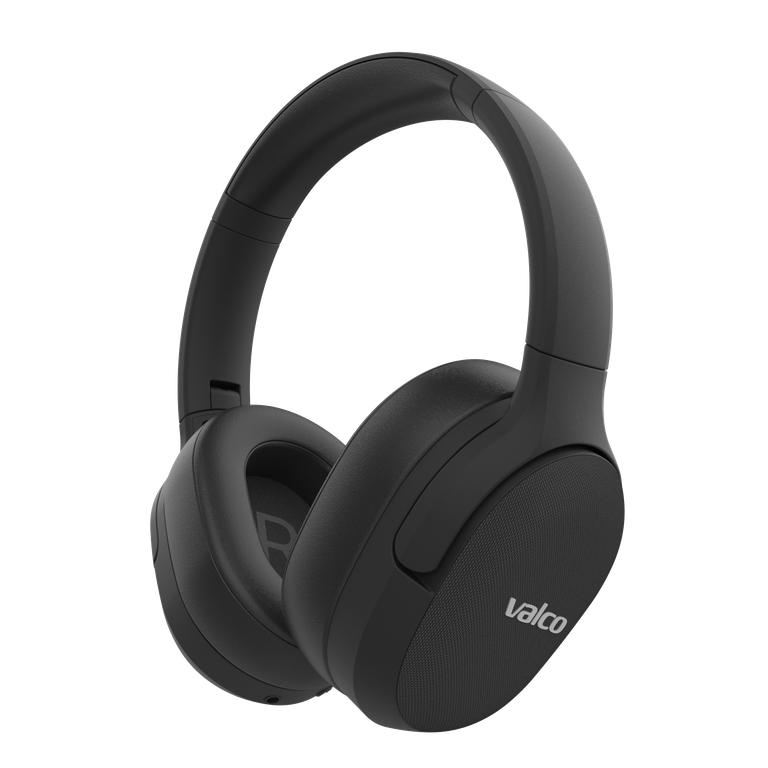
Headphones crackling, cutting out, or sounding like someone's crushing crisps right next to your ear? And you're not even the one eating them? Welcome to the wonderful world of Bluetooth interference. It's annoying, but usually fixable without sending anything in for repair.
Why does Bluetooth cut out near certain devices?
Bluetooth operates on the 2.4 GHz frequency. So does WiFi, wireless mice, keyboards, USB 3.0 ports, and basically every other piece of modern electronics. When enough of these devices share the same space, they start interfering with each other like three mates all talking over each other in a sauna.
Laptops are especially problematic here. Many laptops have a small, low-powered Bluetooth antenna compared to phones. On top of that, USB 3.0 ports leak radio frequency noise right onto the Bluetooth band. If your headphones work flawlessly with your phone but crackle with your laptop, the culprit is almost always on the laptop's end.
The VMK25 uses Bluetooth 5.1 with a Qualcomm chip, so the headphones' own radio link is solid. But the best radio chip in the world can't help if the other end is shouting at a wall.
How to fix it
Try these in order:
- Move your laptop closer. Bluetooth signal degrades within just a couple of metres if there's interference around. Keep your headphones and laptop on the same side of the desk.
- Disconnect USB 3.0 devices. Especially external hard drives, USB hubs, and docking stations. USB 3.0 leaks noise onto the 2.4 GHz band. Try unplugging them for a moment and see if things improve.
- Switch WiFi to the 5 GHz band. If your laptop is using 2.4 GHz WiFi, it's competing for the same frequencies as Bluetooth. Most routers let you select the 5 GHz network separately.
- Remove unnecessary Bluetooth pairings. The VMK25 supports multipoint, meaning two devices simultaneously. If the headphones are trying to maintain a connection to two devices and both are sending data, it puts strain on the link. Remove pairings from devices you're not currently using.
- Reset the headphones. Plug in the 3.5mm AUX cable and then unplug it. This resets the Bluetooth chip. Simple, but works surprisingly often.
- Update your laptop's Bluetooth drivers. On Windows especially, Bluetooth drivers tend to go stale quickly. Grab the latest ones from your manufacturer's website.
- Try an aptX HD connection. Make sure your laptop supports the aptX codec. The SBC codec is more susceptible to interference. If your laptop doesn't support aptX, that could explain the difference compared to your phone.
If nothing helps
If you've tried everything above and the headphones still crackle with your laptop, the problem is most likely your laptop's Bluetooth module. You can work around this by getting a separate USB Bluetooth adapter (preferably Bluetooth 5.0+ with aptX support). A ten-euro adapter solves this problem more often than we'd like to admit.
If you're also getting interference with your phone at close range with no other devices around, drop us a message at info@valco.fi. Include your order number and describe the situation, and we'll figure out if the headphones need to take a trip to Kajaani for repair.
Bluetooth interference is a bit like the neighbour's dog – not your fault, but definitely your problem. Luckily, this problem is easier to solve than the neighbour's dog.