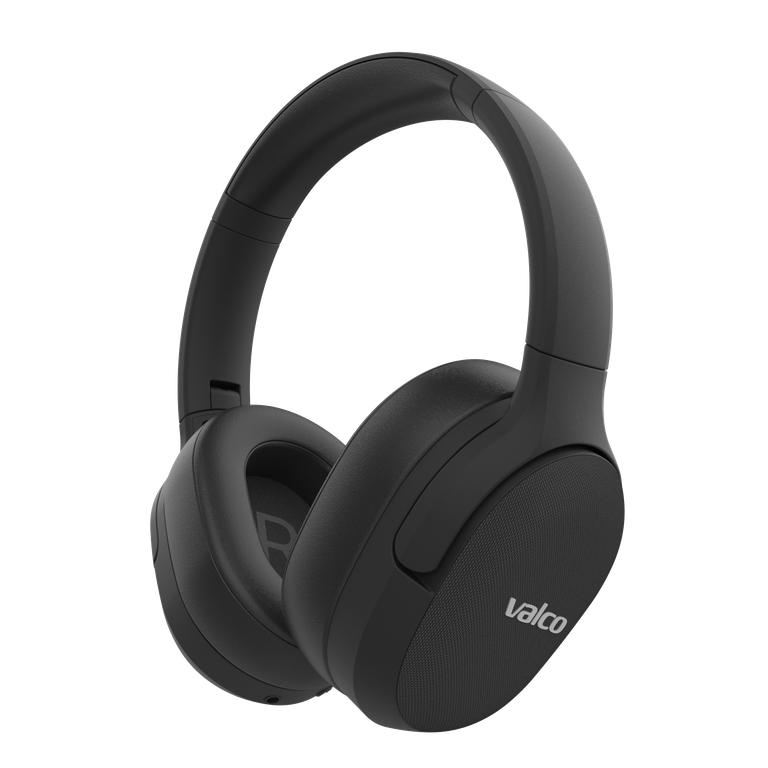
Microphone echo is the kind of thing that drives you absolutely mental in about three minutes flat. You're in a Teams call and you hear your own voice bouncing back like you're shouting into an empty bunker. And it doesn't stop even if you unplug the mic or mute it. No wonder your nerves are fraying.
Before you launch your headphones at the wall, let's go through what's causing this and how to sort it out.
What causes the echo?
The VMK-25 wired microphone is a separate accessory that connects to the headphones via cable. Echo usually comes down to two things:
- Firmware glitch: The headphone firmware misinterprets the microphone signal and loops part of the audio back into the headphones. This explains why the echo continues even after muting – the fault is in the signal processing, not the microphone itself.
- Computer audio settings: Windows and macOS are perfectly capable of messing things up all on their own. If the system routes the microphone audio back to the headphones (the "monitor" setting), you'll get echo regardless of the headphone settings.
In rare cases it can also be a physical fault in the microphone cable or connector, but that's less common.
How to fix it
Try these in order:
- Check your computer's audio settings first
- Windows: Open Sound Settings > Recording Devices > VMK-25 microphone > Properties > "Listen" tab. If "Listen to this device" is enabled, turn it off. This alone causes echo surprisingly often.
- macOS: System Settings > Sound > make sure the input isn't being routed back to the output.
- Update the headphone firmware
- Download the Valco app (iOS / Android), connect your headphones and check if any updates are available. Firmware updates fix exactly these kinds of signal processing bugs.
- Factory reset
- If the update didn't help, reset the headphones to factory settings. This clears out any settings that may have gone wonky. You'll find instructions in the manual that came with the headphones or on the valco.support website.
- Test with a different device
- Connect the headphones to a phone or another computer and try the microphone. If the echo disappears, the fault is in the original device's settings. If the echo persists on every device, the problem is in the headphones.
- Check the microphone cable
- Disconnect the cable, blow into the connector (yes, that actually works sometimes), and plug it back in properly. A dodgy contact can cause all sorts of weird audio shenanigans.
If nothing helps
If none of the above did the trick, it's most likely a hardware fault. Drop us a message at info@valco.fi – include your order number and a brief description of what you've already tried. Our service team in Kajaani will sort it out. We fix devices, we don't chuck them in the bin.
And remember: every device sent in for repair is one step closer to a functioning Death Star. So in a way, you're helping bring peace to the galaxy.