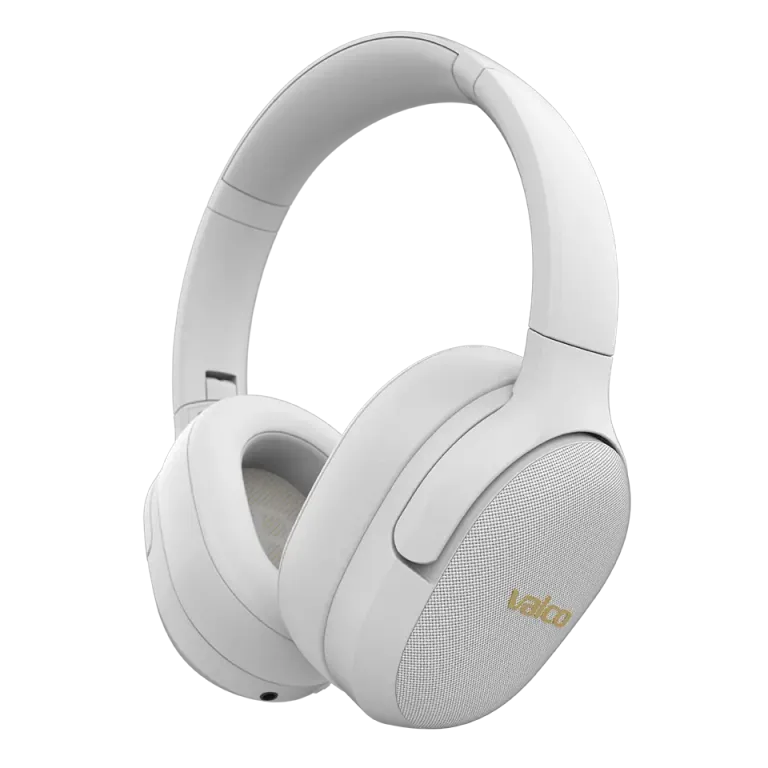
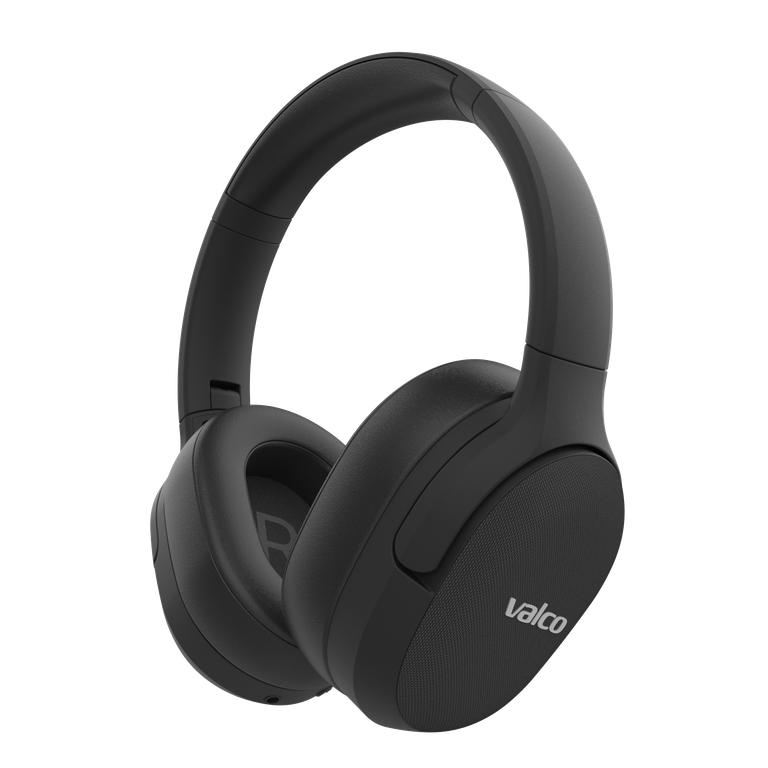
VMK25 microphone won't connect to work laptop
This is one of those problems where the fault isn't with the headphones – it's with Windows. We know this because roughly every third VMK25 owner wrestles with this exact same issue at some point. The microphone works on a PlayStation, on your phone, and probably even on a microwave – but Windows 11 refuses to recognise it. Welcome to Microsoft's wonderful world of Bluetooth.
Why can't Windows find the microphone?
Windows treats Bluetooth headphones as two separate devices: one is stereo audio playback (A2DP profile) and the other is the hands-free profile, which includes the microphone. The problem usually comes down to Windows only connecting the stereo side and not activating the hands-free profile at all.
There are a few reasons for this:
- Bluetooth drivers are outdated – Windows Update doesn't always update Bluetooth drivers automatically, even though it claims everything is up to date.
- Windows remembers an old pairing incorrectly – If the headphones were previously paired and removed, a ghost device can linger in Windows' memory and mess up the new connection.
- Privacy settings are blocking the microphone – Windows 11 has a separate setting that allows or blocks apps from accessing the microphone. It's on by default, but sometimes updates reset it.
- Teams and other apps select the wrong device – The app might be using the laptop's built-in microphone even though the headphones are connected.
How to fix it
Try these in order. Most of the time the problem is sorted by step 2 or 3.
1. Remove the pairing completely and redo it
- Go to Windows settings: Settings > Bluetooth & devices
- Find VMK25, click the three dots and select Remove device
- Turn off the headphones
- Start the headphones in pairing mode (hold the power button until the LED flashes)
- Let Windows find the headphones and pair again
- Check that both "VMK25" (audio playback) and "VMK25 Hands-Free" (microphone) appear in the device list
2. Update Bluetooth drivers
- Open Device Manager (type "Device Manager" in the search bar)
- Expand the Bluetooth section
- Right-click the Bluetooth adapter > Update driver
- If Windows claims the driver is up to date, go to your laptop manufacturer's website and download the latest Bluetooth driver manually. Windows lies about this shamelessly.
3. Check microphone permissions
- Settings > Privacy & security > Microphone
- Make sure "Microphone access" is on
- Make sure "Let apps access your microphone" is on
- Check the list to confirm that Teams, Zoom, or whatever app you're using is allowed
4. Select the correct microphone in your app
- This gets forgotten surprisingly often. In Teams, go to Settings > Devices and specifically select VMK25 Hands-Free as the microphone – not "Default device".
- Same goes for Zoom, Discord, and others. Each one has its own audio settings.
5. Restart the Bluetooth service
- Press Win + R, type `services.msc` and hit Enter
- Find Bluetooth Support Service in the list
- Right-click > Restart
- Pair the headphones again after that
If nothing helps
If you've gone through every step and nothing did the trick, the problem is most likely your laptop's Bluetooth adapter. Some cheaper laptops have Bluetooth chips that don't properly support the hands-free profile, or their drivers are so rubbish that even Microsoft themselves can't fix them.
Two options:
- External USB Bluetooth adapter – A dongle for twenty-odd quid solves the problem in most cases. Get one that supports Bluetooth 5.0+ and the hands-free profile.
- Get in touch with us – Drop us a message at info@valco.fi. Let us know your laptop's make and model, and we'll check if it's a known compatibility issue.
The headphones definitely work – the fact that your PlayStation and phone recognise the microphone without a hitch proves that. In this case, the enemy is Windows' Bluetooth stack, not your Valco headphones. But we'll still help you out, because you're never getting an answer from Microsoft.