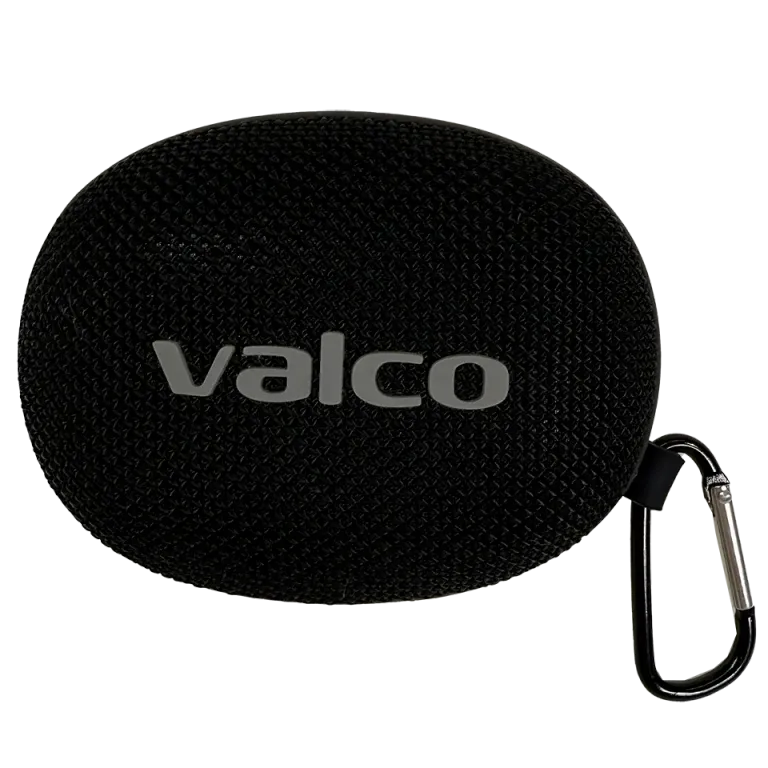
Nordell Micro speaker not working in Teams
Bluetooth connects, Spotify plays through the speaker like a dream, but Teams? Teams decides to use your laptop's built-in speaker, which sounds like someone talking through an empty yoghurt pot. Classic.
This isn't the speaker's fault. This is Teams' fault. Or more precisely, it's because Teams insists on choosing the audio device itself – and it usually chooses wrong.
Why doesn't Teams use the speaker automatically?
Teams keeps its own separate list of audio devices. It couldn't care less about what you've set as the default device in Windows sound settings. Teams is a bit like that mate who never listens to advice and always does things their own way.
In practice, this means that even if Windows shows everything is fine and Nordell Micro is the default device, Teams might still be using something completely different. And because Nordell Micro connects via Bluetooth, Windows can see it as two separate devices – one for music (A2DP profile) and one for calls (Hands-Free profile). This muddies the waters even further.
How to fix it
1. Check Teams' own audio settings
- Open Teams and click your profile picture in the top right corner
- Go to Settings > Devices
- Check the Speaker and Microphone sections
- Under Speaker, pick Nordell Micro
- Under Microphone, pick your computer's own mic. Nordell Micro has no microphone, so it can't act as your Teams mic. If you want a speaker with a microphone for meetings, look at Nordell MK3 or Nordell Max.
2. Check Windows sound settings
- Open Settings > System > Sound
- Make sure Nordell Micro is the output device and your computer's own microphone is the input device
- If you see two Nordell Micro options, pick the one that says "Stereo" for playback: that's the music profile and it sounds better
3. Pick the right Bluetooth profile
- Bluetooth can show Nordell Micro as two devices: "Stereo" is the music profile and "Hands-Free" is the call profile
- Always pick "Nordell Micro Stereo" for audio playback: it sounds far better
- Since the Micro has no microphone, your mic should always be the computer's own or a separate microphone
4. Test with a Teams test call
- In Teams audio settings there's a "Make a test call" button. Use it.
- If you hear your own voice played back through the speaker, you're golden
5. Restart everything
- Yes, the eternal IT advice. Turn off Nordell Micro, close Teams, power the speaker back on and reopen Teams. Sometimes the Bluetooth connection gets stuck on the wrong profile.
If that doesn't help
If you've gone through all of the above and Teams still refuses to cooperate, try removing Nordell Micro from Bluetooth entirely and pairing it again. Windows sometimes saves old Bluetooth profiles incorrectly.
If that doesn't do the trick either, drop us a message at info@valco.fi. Include screenshots of your Teams audio settings and Windows sound settings so we can figure out together where things are going wrong. Your order number is handy to mention too.
Teams is the kind of software that sometimes makes you want to go back to the landline era. But the speaker isn't the problem – Jasse's engineering can handle even Microsoft's bureaucracy.