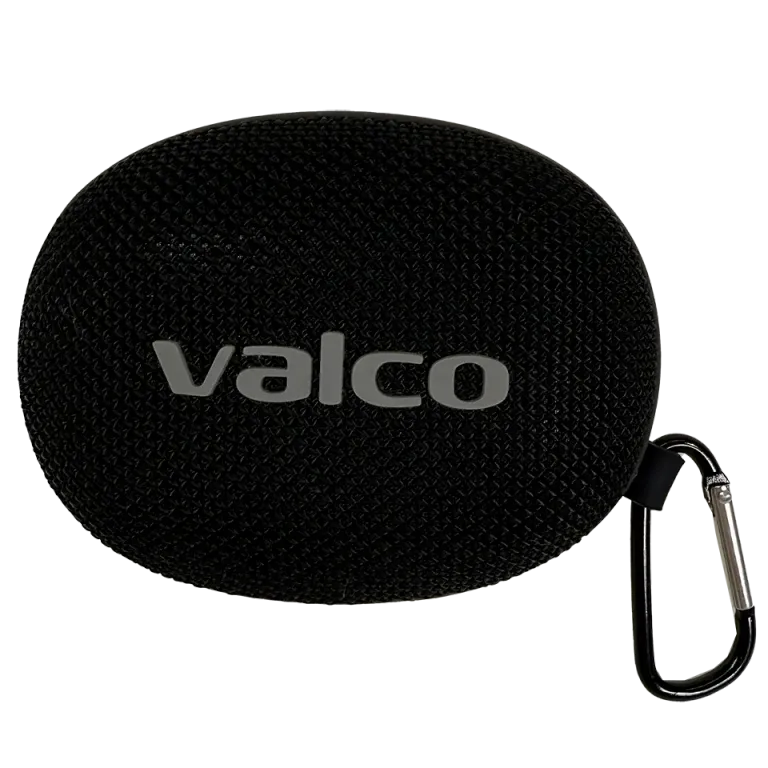
Nordell Micro is a small speaker, and small speakers mean small buttons. Small buttons mean your finger sometimes lands in the wrong place. That’s nothing to be ashamed of – we all have fingers.
But sometimes it’s not about fingers; it’s that the device is genuinely confused. Let’s go through both possibilities.
First: do you know what the buttons do?
It sounds like a silly question, but the Micro’s button layout is tight and their logic isn’t completely self-evident. There are four buttons, and they sit along the top edge of the speaker:
- Power – in the top-right corner. A long press turns it on and off. A short press doesn’t do anything special.
- - and + – side by side in the middle. A short press adjusts the volume, a long press changes the track.
- Play/Pause – in the bottom-left corner. A short press plays or pauses the music. Double-click to answer a call.
If you press the wrong button, you get the wrong result. Surprisingly enough, that’s how the entire universe works. Try calmly pressing the buttons one by one and compare with the manual – many a “fault situation” has been resolved by the customer pressing plus instead of minus.
A small note about the manual: page numbering may be off by a couple of pages depending on the cover language version. We are not the printer’s most meticulous customer. The instructions are there, even if the table of contents claims otherwise.
Buttons really don’t respond
If you’re sure you’re pressing the right button and nothing happens, try these:
- Reset the speaker. Hold the power button for at least 5 seconds. The speaker will turn off. Turn it back on. This resolves most software confusion states.
- Charge the speaker. An empty battery makes the device unpredictable. Plug in a USB-C cable and let it charge for about an hour before trying again.
- Check the Bluetooth connection. If the speaker is paired to your phone, some buttons control the phone’s playback. If the phone isn’t playing anything, pressing the Play/Pause button will appear to do nothing – even though the speaker is sending the command onward.
- Try a TF card. Insert a memory card and test the buttons without a Bluetooth connection. If the buttons work in TF mode but not over Bluetooth, the problem is with the connection, not the buttons.
Stereo pairing mixes things up
If you’re trying to pair two Micro units in stereo and the buttons seem to get confused: press the Play/Pause button on both speakers and wait until you hear the “di-di” sound. Before pairing, both speakers must be on and disconnected from the phone’s Bluetooth. Order matters – first pair the speakers with each other, then connect the phone.
If that doesn’t help
If after the reset, charging, and reading the instructions the buttons are still dead or behave as if they have a will of their own, send us a message at info@valco.fi. Provide the order number and describe which button does what (or doesn’t). A photo also helps, even if a non-working button is hard to capture in a picture.
We repair the devices in Kajaani. Your money has funded 0.000001% of our Death Star, so the least we can do is make sure your speaker’s buttons work.