Valco App is a control app designed for Valco headphones. Even though the headphones are tuned to the best possible punch right out of the box, with the app you can customize the sound, manage extra features of the headphones and update the firmware.
Note for iOS users: if the app does not find your headphones reasonably easily, it is not your fault. First update the headphones using another platform (Windows, Mac, Linux or Android).
Compatibility and downloading
Valco App is available for both mobile devices and computers:
Phones: Android and iOS (iPhone)
Computers: Windows, macOS and Linux
Supported headphone models:
Valco VMK25.2
Valco VMK15
(Note. Older or other models are not supported.)
The app’s adjustment features require Standard firmware on the headphones. If the app asks for an update, install the Standard version it offers. The Classic only version disables Bluetooth Low Energy features, so the app’s adjustments do not work with it.
Getting started
- Download Valco App from your device's app store or from Valco's website.
- Turn on the headphones and connect them to your device normally via Bluetooth.
- Open Valco App - the app automatically detects connected headphones.
Main functions of the app
1. Labra (headphone management and settings)
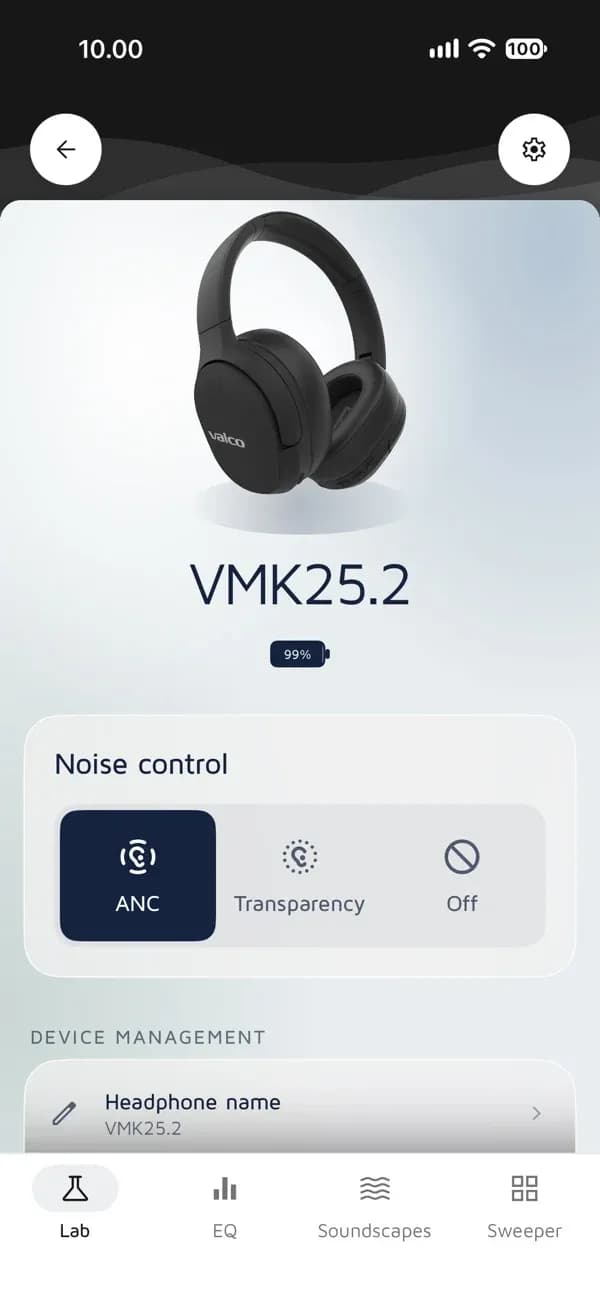
From the Labra view you can manage all technical functions of the headphones:
Battery and device information: Check the exact battery level and the current firmware version of the headphones.
Noise control: Switch between the listening modes supported by your headphone model. VMK25.2 has ANC, transparency and ANC off. On VMK15, ANC is either on or off.
Connections: Manage Multipoint multi-point connection and Auracast features.
Customization: Rename your headphones, edit voice prompts or restore the headphones to factory settings.
2. Equalizer (EQ)
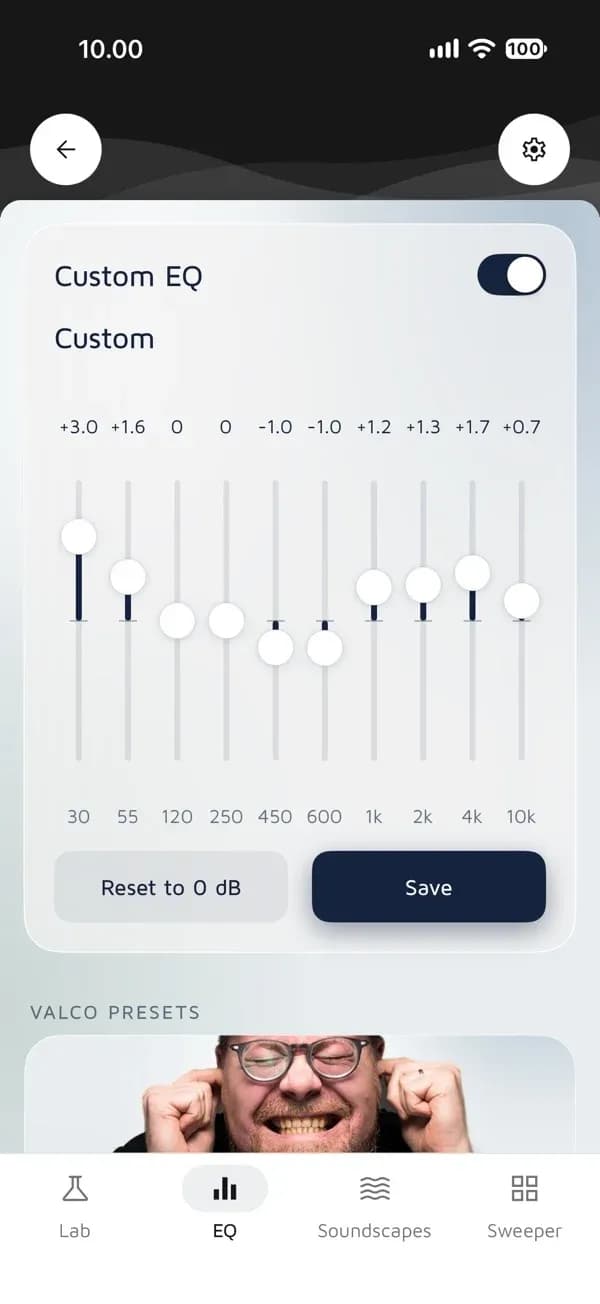
In the EQ section you can modify the headphone sound profile to your liking:
Ready-made presets: Choose from the ready-made sound profiles created by Valco's sound designer Jasse.
10-band equalizer: Create and save fully your own sound settings using ten sliders.
3. Soundscapes
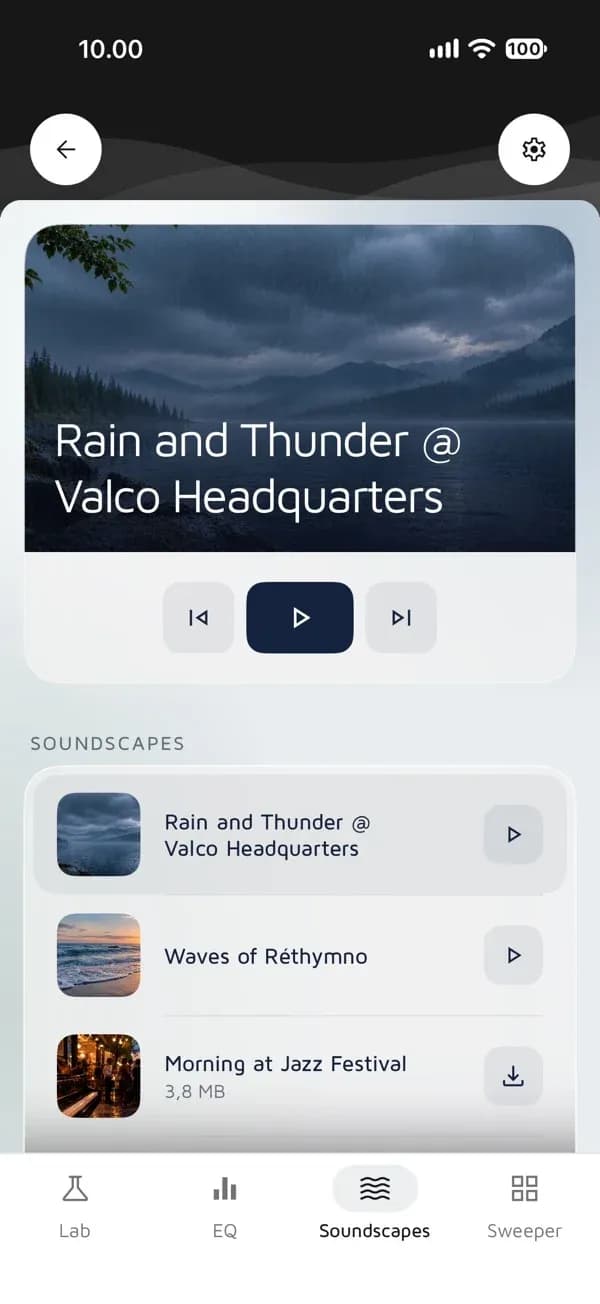
When you want to shut out the outside world without music, Soundscapes offers long, continuous background soundtracks (such as rain, thunder or a jazz club atmosphere) for focus and relaxation.
4. Kuulokeharava
A built-in mini-game in the app where you collect flags and dodge mines against the clock. The game does not affect the headphone sound quality, but it does provide a way to pass the time.
Frequently asked questions and troubleshooting
Do I need the app to use the headphones?
No. The headphones work completely on their own without the app. The app is an optional extra tool for fine-tuning settings and updates.
How do I update the headphone firmware?
Open the Labra section of the app. If a new software update is available for your headphones, the app will notify you and guide you through the installation.
Important: Do not turn off the headphones or disconnect Bluetooth during the update.
What if my sound quality gets messed up by my own EQ adjustments?
You can at any time turn off your own equalizer or restore Valco's default settings from the EQ menu.
The app can't find my headphones - what do I do?
- Make sure the headphones are powered on.Check your device's Bluetooth settings to make sure the headphones are paired and connected to the device.
- Restart the app.
- If the connection still does not work or you need more help, contact Valco customer service by email: info@valco.fi.