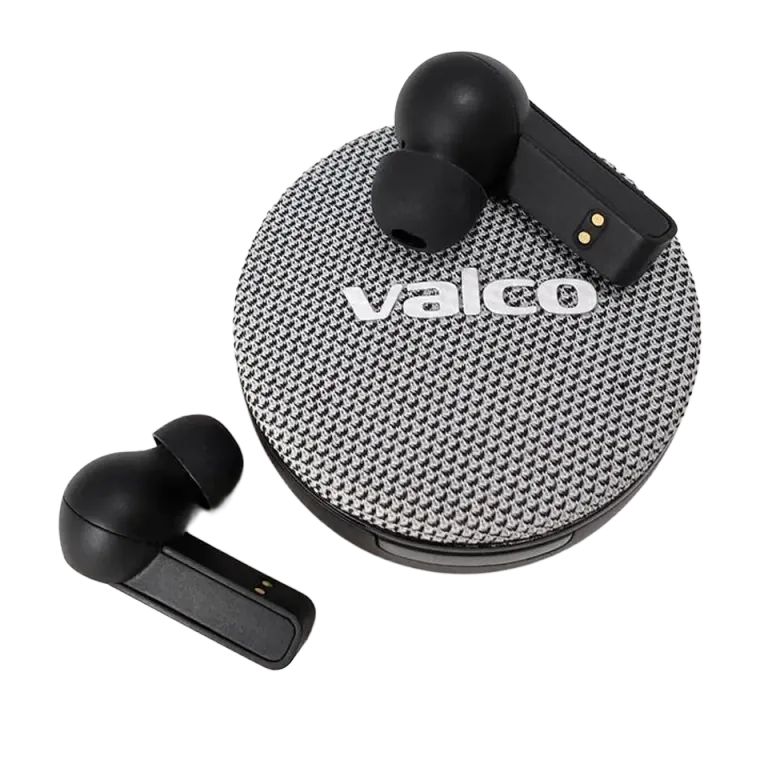
NL25 not working in Microsoft Teams
Teams and Bluetooth earbuds – a classic combo that works flawlessly roughly one out of three times. Music plays just fine, but the moment a meeting starts, nobody can hear you. Or they can, but through your laptop's built-in mic, which helpfully picks up the coffee machine gurgling and your colleagues' gossip. Sound familiar?
The problem isn't with the NL25 – it's how Windows and Teams handle Bluetooth audio. And it's fixable.
Why can't Teams find the microphone?
Bluetooth earbuds have two different audio profiles:
- A2DP – stereo audio for music. Great quality, but doesn't support a microphone.
- HFP/HSP – call profile. Supports a microphone, but audio quality is lower (hands-free level).
When you connect the NL25 to Windows, your PC sees them as two separate devices. Windows might pick the A2DP profile for music playback, but Teams can't automatically switch to the HFP profile. Or Teams stubbornly insists on using your laptop's built-in mic, because Microsoft always knows best.
This isn't an NL25 issue. The same problem plagues every Bluetooth earbud in Teams. We just say it out loud.
How to fix it
1. Check Windows sound settings
- Open Settings → System → Sound
- Make sure both Output and Input (microphone) are set to NL25
- If you see two NL25 options, pick the one that says "Hands-Free" or "HFP" – that's the call profile
2. Change Teams' own settings
- Open Teams and click your profile picture → Settings → Devices
- Change Speaker: NL25
- Change Microphone: NL25
- Hit "Make a test call" and check if you can hear your own voice
3. If Teams doesn't show NL25 in the list
- Disconnect the NL25's Bluetooth connection and reconnect
- Close Teams completely (including from the background – it loves to hide there) and reopen it
- Check that no other app (Spotify, YouTube, another browser) is hogging the audio device
4. A Windows trick that helps surprisingly often
- Go to Control Panel → Sound → Recording
- Right-click the NL25 microphone → Set as Default Device
- Right-click again → Set as Default Communication Device
- Do the same on the Playback tab for the speaker
That "Default Communication Device" is a hidden Windows setting that Teams actually listens to. Without it, Windows might route calls to a different device than music.
5. Update your Bluetooth drivers
Outdated Bluetooth drivers cause problems especially with the HFP profile. Check your laptop manufacturer's website for a Bluetooth driver update.
If nothing helps
Try a factory reset on the NL25: put the buds in the case, keep the lid open, and hold the case button for five seconds. Then pair them again.
If Teams still refuses to cooperate after all that, drop us a message at info@valco.fi. Let us know which Windows version you're running and what laptop you've got, so we can get straight to business.
Teams is the kind of software that sometimes feels like Microsoft designed it as punishment for sins committed in a past life. But it does work with the NL25 – once the settings are sorted.